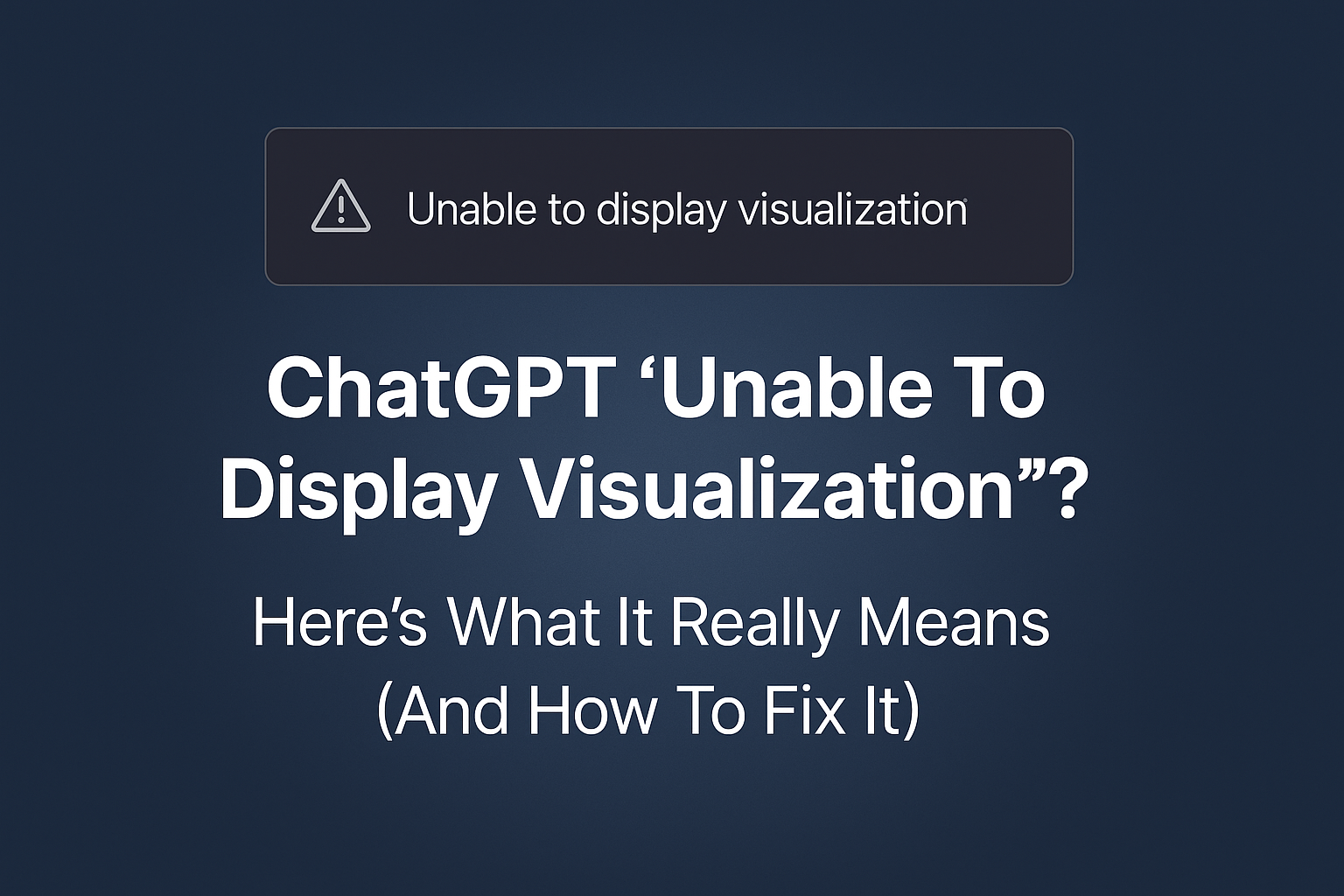
Have you been working on a data file, chart, or visual output inside ChatGPT—only to be met with the frustrating message:
Don’t worry, you’re not alone. Many users across Reddit, OpenAI forums, and social platforms have been facing this issue lately, especially after recent updates to the app. But what causes it? And more importantly, how can you fix it?
In this blog post, we’ll break down everything you need to know—step by step.
What Does “Unable to Display Visualization” Actually Mean?
This error means that ChatGPT has generated a visualization or chart, but the interface (not the model) fails to render it. You might have uploaded a CSV file or asked it to draw a chart—but instead of a visual output, you’re left with this message.
👉 It’s not a content policy violation.
👉 It’s not a crash or app failure either.
👉 It’s just a UI rendering issue—especially on mobile and desktop apps.
📌 Who’s Experiencing This?
The problem is widespread across:
- macOS and iOS apps (especially after recent updates)
- Windows ChatGPT desktop version
- Users uploading Excel, CSV, or other data-heavy files
- Those trying to generate charts, tables, and diagrams
“Happens to me all the time on the iPhone app. Works fine in the browser.” – Reddit user
“It’s a glitch with the desktop app. Use the web version and it works.” – GitHub thread
🛠️ Step-by-Step Fixes (That Actually Work)
Here are the best ways to resolve or bypass the error based on user feedback and troubleshooting reports:
1. Use ChatGPT in a Web Browser (Instead of the App)
The web version of ChatGPT is more stable when it comes to visualizations. Whether you’re using Chrome, Safari, or Edge, just log in at chat.openai.com and try your query again.
2. Start a New Conversation
Sometimes the issue sticks to a single thread. Just start a fresh new chat, and re-run the same prompt or upload the same file. Many users report success this way.
3. Clear Cache / Reinstall App
If you’re using the mobile or desktop app:
- Log out of ChatGPT
- Delete cache/data (or uninstall and reinstall)
- Sign back in and try again
This resolves any temporary cache bugs that might block visualization rendering.
4. Change File Format
Some users experienced this issue when uploading .csv or .xlsx files. Try converting the file to .pdf or .txt, or restructure the data manually in the chat.
5. Stay Updated via Community Forum
You can track ongoing bug reports and updates on:
The OpenAI team is already aware of the visualization issues and may release patches soon.
Why This Happens (A Quick Technical Breakdown)
Behind the scenes, ChatGPT can generate visual data using code and rendering plugins—but when it’s unable to draw the output in your chat window, it defaults to the error message.
In most cases:
- It’s not about restricted content
- It’s a render failure, especially for complex visual outputs
- It’s tied to how the ChatGPT interface interprets and displays visualizations
So yes, the model knows what you asked—it just can’t show it due to frontend limitations.
Final Thoughts
While the “Unable to Display Visualization” message is annoying, it’s usually harmless—and temporary.
In summary:
| Problem | Fix |
|---|---|
| App won’t show visualization | Switch to browser |
| Keeps showing in same chat | Start a new conversation |
| File upload fails to preview | Try a different format |
| Issue persists | Clear cache or reinstall |
| Want updates | Check OpenAI forum |
✨ Pro Tip
If you regularly work with visual content, bookmark ChatGPT in your browser and use it for all data-related tasks. It’s currently the most stable way to view charts, images, or previews without hiccups.
Have you faced this issue?
Share your experience in the comments—and if you found a different solution that worked, let’s help each other out!