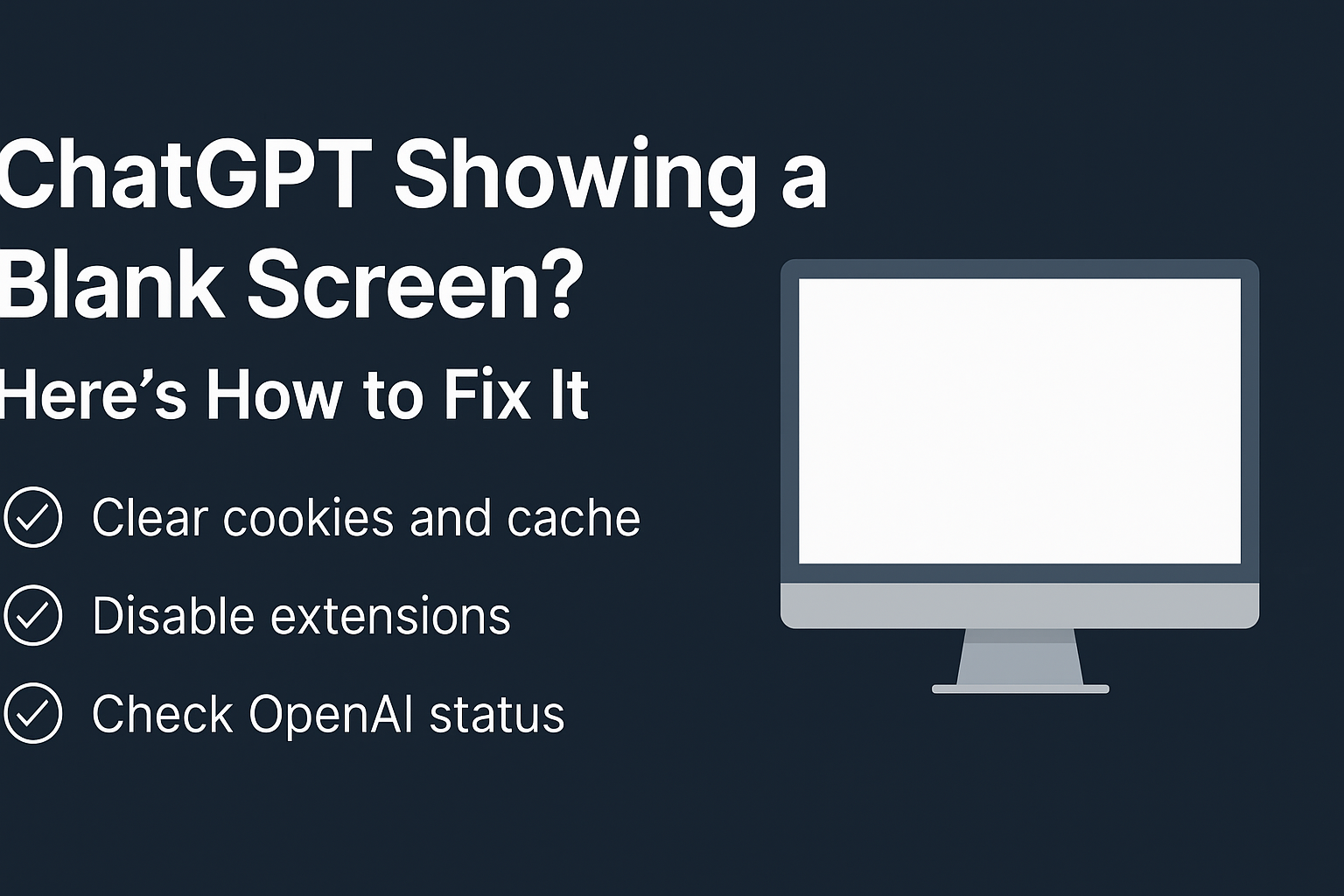
If you’ve tried opening ChatGPT in Microsoft Edge and all you see is a blank page, endless loading, or login errors—you’re not alone. Many users run into this issue because of privacy settings, extensions, or cached data in Edge.
The good news? You don’t have to be a techie to fix it. This blog will walk you through 17 proven solutions to get ChatGPT working smoothly again.
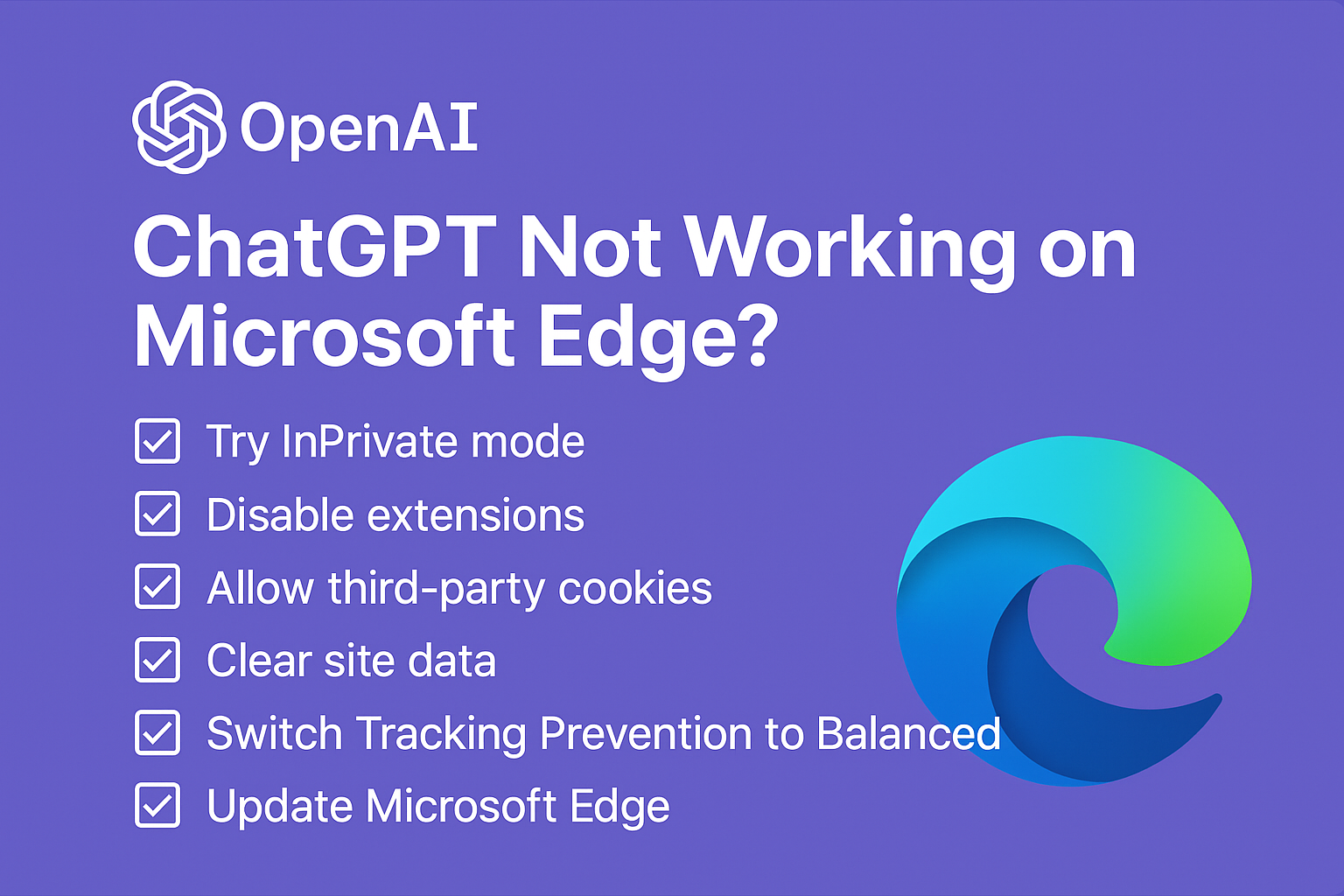
Quick Fix Checklist
If you’re short on time, start here. These are the fastest fixes that solve the problem for most people:
Open ChatGPT in InPrivate mode (Ctrl+Shift+N).
Disable browser extensions, especially ad blockers.
Allow third-party cookies or add an exception for ChatGPT.
Clear site data just for ChatGPT.
Switch Tracking Prevention from Strict to Balanced.
Make sure Microsoft Edge is updated.
If ChatGPT still isn’t loading, keep reading for detailed step-by-step fixes.
You may like: How to make chatGPT have feelings?
Why ChatGPT Breaks in Microsoft Edge
Before jumping into the fixes, it helps to know why this happens in Edge more than other browsers:
Strict Privacy Settings – Blocking cookies and trackers often blocks the very scripts ChatGPT needs to function.
Browser Extensions – Ad blockers, privacy tools, and script managers can interfere with ChatGPT’s login process.
Enhanced Security Mode – While useful for general browsing, it may block ChatGPT’s advanced scripts.
Corrupt Cookies or Cache – Old site data can stop authentication or cause reload loops.
Outdated Browser Versions – Older Edge builds sometimes glitch with modern web apps like ChatGPT.
You may like: ChatGPT keeps repeating, fixed
Step-by-Step Fixes
1. Open in a Clean Session
Launch Edge in InPrivate mode (Ctrl+Shift+N) and open chatgpt.com.
👉 If it works there, the problem is with your extensions or cookies in your regular browsing profile.
2. Disable Extensions
Go to Menu → Extensions → Manage extensions and toggle them off.
Reload ChatGPT. If it works, re-enable your extensions one by one until you find the culprit.
3. Allow Third-Party Cookies
ChatGPT needs multiple domains for login and assets.
- Navigate to Settings → Cookies and site permissions → Manage and delete cookies → Block third-party cookies → Off (or add ChatGPT domains as exceptions).
4. Adjust Tracking Prevention
- Go to Settings → Privacy, search, and services → Tracking prevention → Balanced.
- If you want to keep Strict mode, add chatgpt.com as an exception.
5. Clear ChatGPT Site Data
- Settings → Cookies and site permissions → Manage and delete cookies → See all cookies and site data.
- Search for chatgpt and openai, then delete them.
This removes only ChatGPT’s cookies, not your entire browser history.
6. Enable JavaScript
Check under Cookies and site permissions → JavaScript.
Make sure it’s Allowed for ChatGPT to function properly.
7. Disable Enhanced Security (For ChatGPT Only)
Go to Privacy, search, and services → Enhance your security on the web → Manage exceptions and add chatgpt.com.
8. Update Microsoft Edge
Type edge://settings/help in the address bar.
Apply any available updates, then restart the browser.
9. Toggle Hardware Acceleration
- Go to System and performance → Use hardware acceleration.
- If enabled, turn it off and restart Edge. If off, try enabling it instead.
10. Create a New Profile
Sometimes the current Edge profile is corrupted.
Add a new profile under Profile settings and test ChatGPT there.
11. Reset Edge Settings
- Settings → Reset settings → Restore settings to their default values.
This won’t delete your bookmarks, but it will reset site permissions and extensions.
12. Clear Browser Cache
If site-specific clearing didn’t help, clear all cookies and cached files in Edge.
13. Check Network or IT Restrictions
If you’re on a work or school device, your IT department might be blocking OpenAI domains.
Ask them to allowlist ChatGPT’s official domains.
14. Use the Correct URL
Manually type chatgpt.com into the address bar instead of relying on old bookmarks.
15. Try the Official ChatGPT App
OpenAI offers an official desktop app for Windows and Mac. If browser issues persist, the app can be a stable alternative.
16. Verify Date & Time Settings
An incorrect system clock can break login authentication. Make sure your Windows time is synced correctly.
17. Rebuild User Data Folder (Advanced)
If nothing works, rename your Edge profile folder:
- Close Edge.
- Go to
%LOCALAPPDATA%\Microsoft\Edge\User Data\Default. - Rename it to
Default.old. - Restart Edge—it will create a fresh profile.
🙋♂️ FAQs
Q. Why does Strict tracking prevention break ChatGPT?
Strict mode blocks third-party cookies and sign-in scripts, which are essential for ChatGPT to load properly.
Q. Is it safe to allow cookies for ChatGPT?
Yes—just add exceptions for ChatGPT domains instead of allowing cookies for all websites.
Q. Should I install random “ChatGPT apps” I find online?
No. Stick to OpenAI’s official app. Many fake ChatGPT apps contain malware.
✅ Final Thoughts
Most of the time, fixing ChatGPT on Edge is as simple as disabling an extension or allowing cookies. The quickest test is to open ChatGPT in InPrivate mode—if it works there, you know it’s a local browser setting causing trouble.
And if nothing works, don’t worry. You can always use the official ChatGPT desktop app until Edge is reset or updated.